 Mirrion
Local development for macOS
Run your web projects locally.
Give each site its own environment and HTTPS address. Open it on your Mac or test it in the browser on your phone.
Apple silicon macOS 26 or later
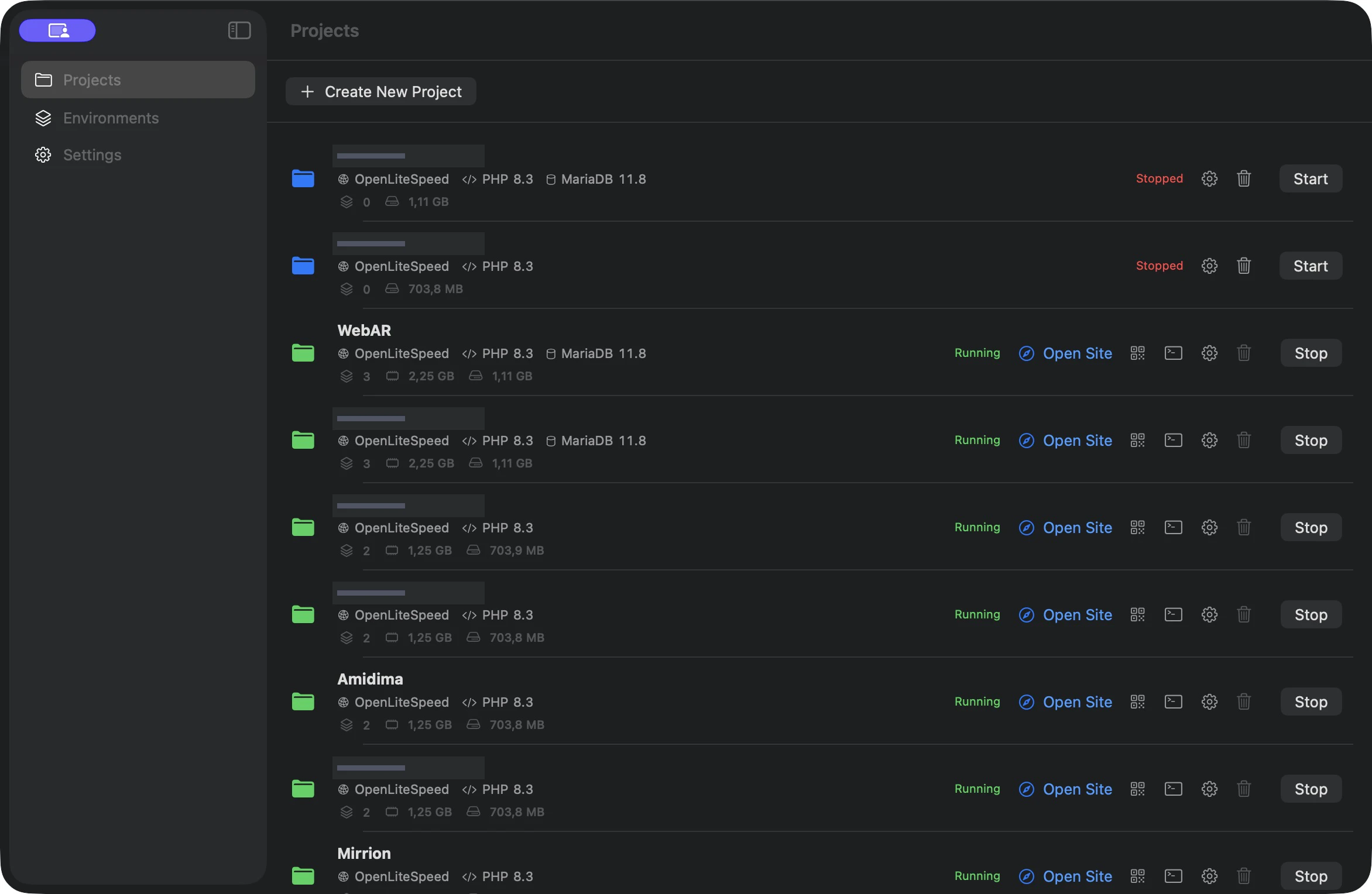
Workflow
From project folder to local HTTPS
Choose a folder
Create a project and give it a local domain, such as
studio.test.Pick an environment
Select a ready-made environment or build one from compatible components.
Open your site
Start the project in Mirrion and open it at its local HTTPS address.
Running sites stay available after you quit Mirrion
Mirrion Runtime serves started projects in the background while your Mac and the runtime are running. You can keep using their HTTPS addresses on the Mac and on your local network if LAN Access is enabled. To take a site offline, reopen Mirrion and click Stop next to the project.
Local HTTPS & device testing
Test the way your site will be used
Open your project over HTTPS
Give the project a local domain, such as mirrion.test, then use Open Site from the Projects list. Mirrion serves the project over HTTPS with a local certificate. Trust the certificate on your Mac so the browser can verify the connection.
Use the HTTPS address to check behavior that depends on a secure connection, such as secure cookies and browser APIs.
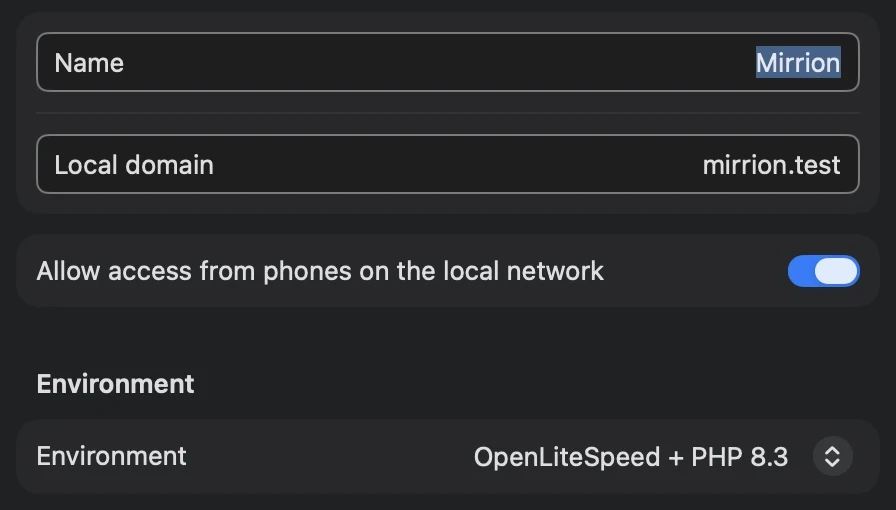
Open the same project on your phone
- Enable phone access in Project Settings. Connect your phone to the same local network as your Mac.
- With the project running, open LAN Access using the QR button in Mirrion.
- Install and trust the local certificate on the test device, then scan the QR code to open the project’s HTTPS address.
On iPhone, Mirrion can send the certificate via AirDrop. After installing it, enable trust in Settings → General → About → Certificate Trust Settings. Apple’s certificate instructions.

Try camera-based WebAR before deploying
Run your WebAR project in Mirrion, open it over trusted HTTPS on the test phone, and check the camera permission flow and marker tracking on the device. The same setup lets you test web experiences that request camera or microphone access.
The browser still asks for permission. Immersive WebXR also requires a compatible browser and device. WebXR specification.

Environments
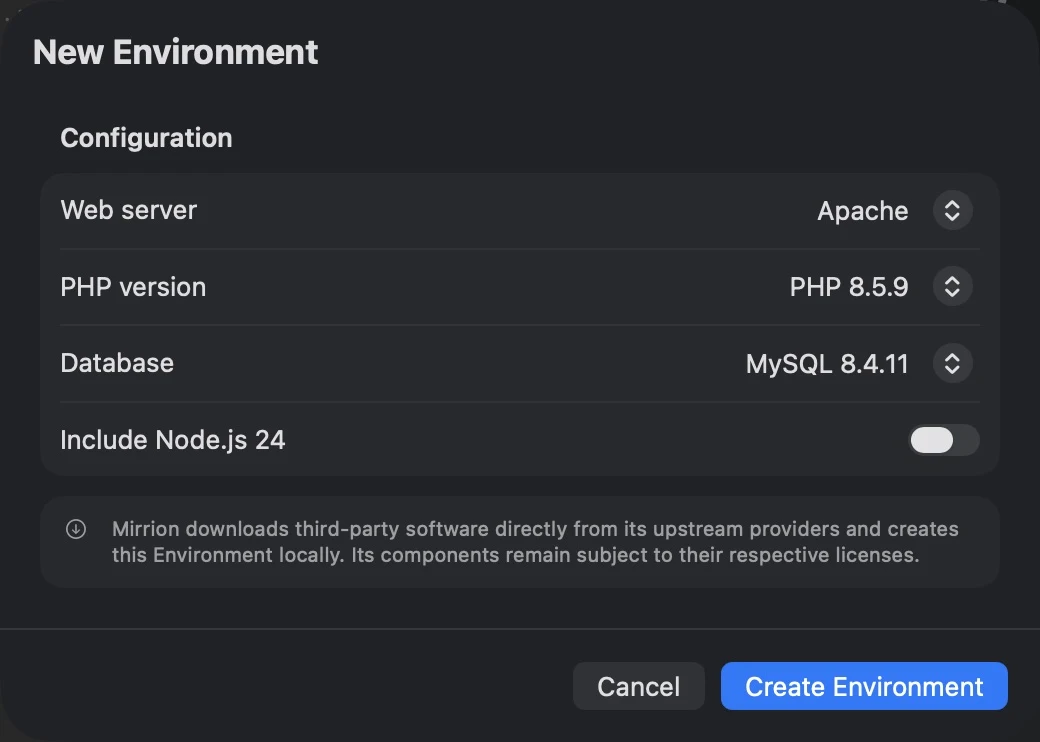
A stack for each project
Use an existing environment or create one with the versions your project needs. Mirrion Runtime runs each project in an isolated environment on your Mac.
- Web servers
- Apache, Nginx, OpenLiteSpeed
- Application runtime
- PHP, optional Node.js 24
- Optional databases
- MySQL, MariaDB, PostgreSQL

Download
Mirrion for macOS
Running local projects with Mirrion Runtime requires an Apple silicon Mac with macOS 26 or later.
Apple silicon · ZIP · 25.8 MB
Includes the app, signing script, and a copy of this website.
Installation
Install Mirrion on your Mac
Use an Apple silicon Mac with macOS 26 or later to run local projects.
-
Extract the ZIP
Open the downloaded archive and move
Mirrion.appto Applications. -
Reapply the local signature if needed
Quit Mirrion if it’s open. In Terminal, type
cdfollowed by a space, drag the extractedMirrion-1.0folder into the Terminal window, and press Return. Run this command and look for Local signature verified../sign-mirrion.sh /Applications/Mirrion.app -
Set up Mirrion Runtime
Open Mirrion from Applications. In Settings, choose Install Mirrion Runtime if prompted. Once it’s available, create or open a project and click Start.
This local test build uses an ad hoc signature. It has no Apple notarization, so Gatekeeper may block it depending on your Mac’s security settings.